
Good to know:
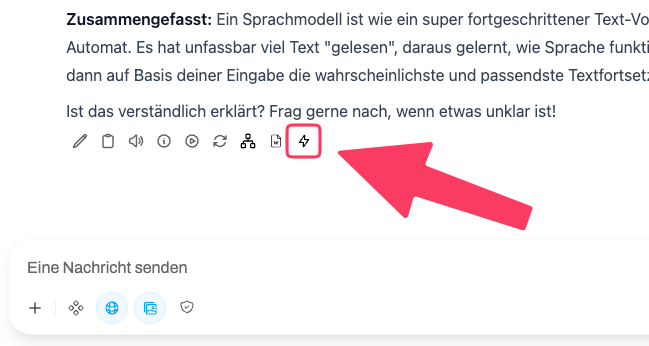
Quick Actions always refer to a response already generated by NENNA. Click Quick Actions on the desired response and then select the appropriate action.
What are Quick Actions?
Quick Actions are predefined follow-up actions for existing AI responses. Instead of entering a new instruction such as "Summarize the response more briefly" or "Phrase this more professionally", you select the desired action directly from the Quick Actions menu.
This lets you quickly adapt a good response to your specific use case. The original content is preserved, and you can generate further variants based on the same response.
Typical uses:
shortening or summarizing long responses,
having complex content explained more simply,
phrasing texts more professionally or more friendly,
checking responses for possible errors or contradictions,
converting content into emails, task lists, tables, or FAQs,
translating texts,
having code explained or checked,
creating learning questions or summaries from a response.
How to use Quick Actions
Ask your question in NENNA as usual.
Wait until NENNA has created the response.
Open Quick Actions on the desired response.
Select an appropriate action.
NENNA uses the selected action as a follow-up instruction and creates a new response from it.
Quick Actions can also be used on older responses within a chat. You can therefore specifically select a particular response and process only that one further.
Which actions are available?
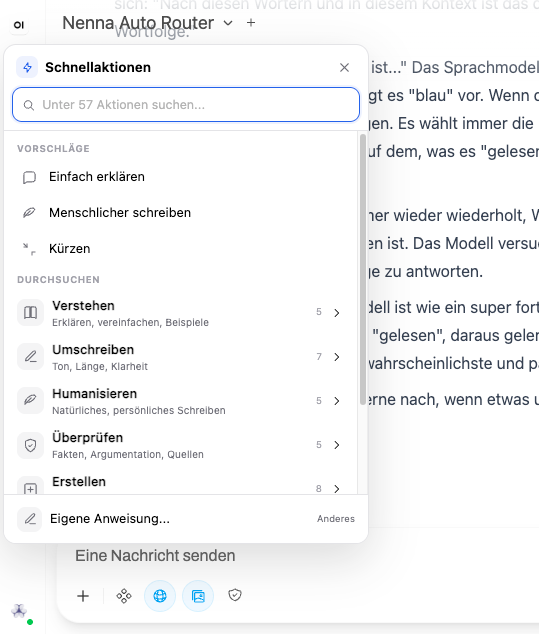
Quick Actions cover various types of further processing. Which actions are shown can vary depending on the configuration of your NENNA environment.
Area | Examples | Suitable for |
|---|---|---|
Understand | Explain simply, explain in more detail, explain step by step | Complex or technical content |
Revise | Shorten, phrase more clearly, write more professionally or more friendly | Emails, texts, summaries, and customer communication |
Humanize | Phrase more naturally, more conversationally, or less schematically | Texts meant to be sent directly to other people |
Check | Question statements, check reasoning, verify calculations | Analyses, research, and important decision-making bases |
Create | Create an email, report, checklist, tasks, table, FAQ, or presentation structure | Further processing of a response into a directly usable format |
Code and data | Check code, search for errors, interpret data, or structure results | Technical tasks and data analyses |
Learn | Create a quiz, flashcards, or practice questions | Training, further education, and knowledge building |
Further actions | Translate or enter your own instruction | Individual follow-up tasks |
Suitable actions are suggested
Depending on the content of a response, NENNA can highlight particularly suitable Quick Actions. For a longer text response, for example, actions for shortening or summarizing may be suggested. For code, actions for code review or error searching may come to the forefront instead.
This means you do not need to search through all available actions. The suggested actions serve as a quick starting point. Further options remain accessible via the categories.
Practical examples
Example 1: Shortening a long response for an email
You have NENNA analyze a topic and receive a detailed response. For an email to a colleague, however, you only need the most important points.
Procedure:
Open Quick Actions on the detailed response.
Select an action for shortening or summarizing.
If needed, convert the result into an email using a further Quick Action.
Result: A detailed analysis becomes a compact email in a few steps.
Example 2: Making complicated content easier to understand
NENNA explains a contract, technical documentation, or a complex matter to you. Some parts, however, are phrased too technically.
Suitable Quick Action: Explain simply or explain step by step.
NENNA phrases the same content more understandably, without you having to copy the original text again or formulate a new prompt.
Example 3: Revising a response for customer communication
You already have a draft response that is content-wise suitable, but you want to make the tone more professional, more friendly, or more natural.
Suitable Quick Actions:
phrase more professionally,
phrase more friendly,
phrase more naturally,
phrase more shortly and clearly.
This way, you can optimize content and tone separately.
Example 4: Creating tasks from a meeting summary
You have had a meeting summarized and want to derive concrete next steps from it directly.
Suitable Quick Action: Convert into tasks or checklist.
NENNA structures the existing content as concrete to-dos. Depending on the source text, this can, for example, extract tasks, responsibilities, or next steps.
Example 5: Critically checking an analysis
You have received an analysis or recommendation from NENNA and want the response looked at critically once more.
Suitable Quick Actions:
question the response,
check reasoning,
verify calculations,
check statements for possible weaknesses.
Note:
A check via Quick Actions is also carried out by an AI model. For important professional, legal, or economic decisions, relevant information should still be verified using suitable sources.
Example 6: Adapting content for different target audiences
A response is factually correct but should be prepared, for example, for executives, employees, customers, or people without specialist knowledge.
Use a suitable action to adjust the style, or use your own instruction to specify the desired target audience.
Example: "Phrase this response for a person without technical background knowledge."
Example 7: Creating an FAQ from a response
You have worked through a topic in detail with NENNA and want to create a compact question-and-answer structure from it.
Suitable Quick Action: Prepare as FAQ.
This is suitable, for example, for internal documentation, training materials, or preparing help texts.
Using your own instruction
If none of the existing Quick Actions fits your task, you can use your own instruction. This lets you process the existing response in a targeted way without having to copy the relevant content back into the chat.
Examples of custom instructions:
"Turn this into a short Teams message with a maximum of 80 words."
"Compare the most important pros and cons in a table."
"Phrase the response for management and focus on risks and next steps."
"Create five questions for a customer conversation from this."
Tip:
Use Quick Actions for recurring adjustments. Use your own instruction when you need a very specific result or a special format.
Frequently asked questions
Does Quick Actions change the original response?
No. The original response remains unchanged. Quick Actions generate a new follow-up instruction based on the selected response, and thus a new response.
Do I need to use a specific AI model for Quick Actions?
Quick Actions work with whichever AI model is being used or available. No special model is required for the feature itself.
Can I use Quick Actions on older responses?
Yes. You can open Quick Actions on an earlier NENNA response within a chat and process it in a targeted way.
Why don't I see all the described actions?
Which categories and actions are available can be determined by the configuration of your NENNA environment. This is why the selection may differ between environments.
Does a Quick Action use up an additional AI request?
Once you execute a Quick Action and have a new response generated from it, this is processed like a normal follow-up request in the chat. Simply opening the Quick Actions menu, however, does not generate an additional response.
Can I use several Quick Actions one after another?
Yes. You can refine a result further, for example by first shortening a response, then phrasing it more professionally, and then converting it into an email.
In short:
Quick Actions help you process existing NENNA responses more quickly. Instead of formulating recurring follow-up prompts yourself, you select the desired action directly on the response and get to the right result faster.