

With the NENNA File Agent you can create and edit documents directly in NENNA and download them as finished files. For example, you can use an existing Word template, take content from an email, analyze spreadsheets, or create a new document from several files.
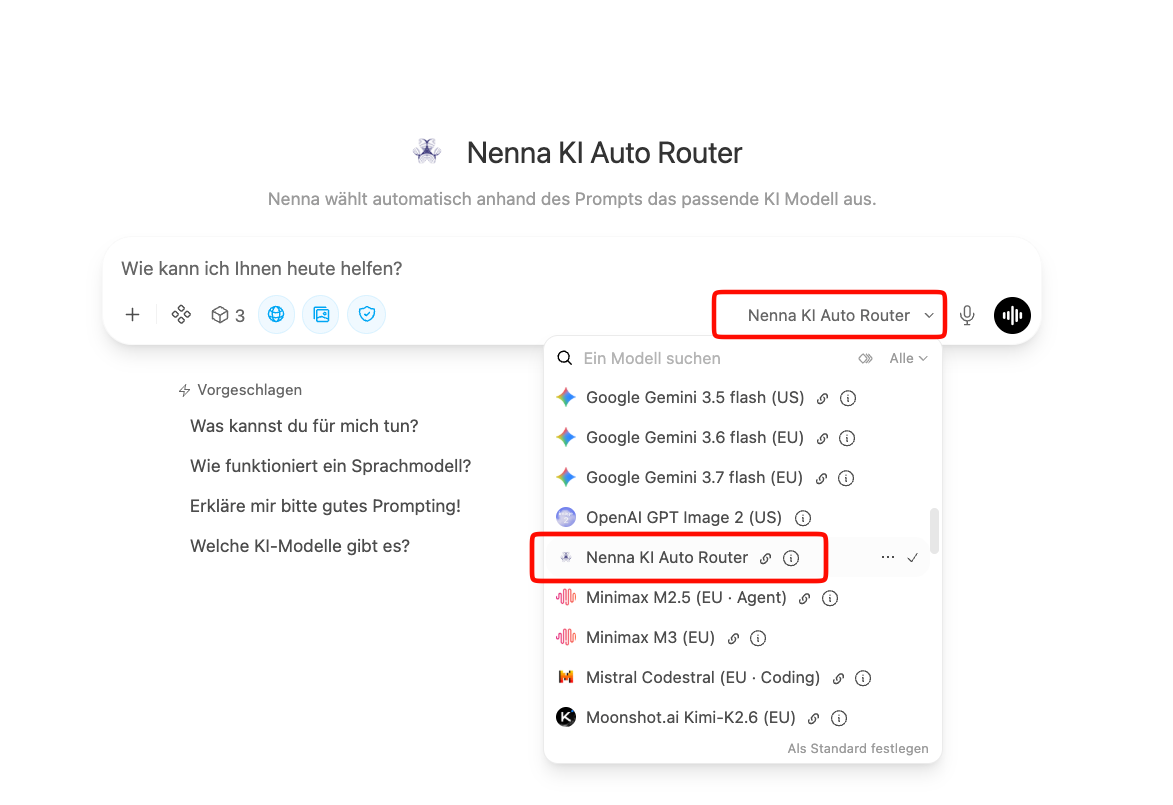
The NENNA File Agent is available exclusively through the NENNA KI Auto Router. For tasks involving files, always select the NENNA KI Auto Router.
You don't need any technical knowledge. Just describe the result you need. NENNA processes the content you provide and makes the finished file available for download right in the chat.
What is the NENNA File Agent?
The NENNA File Agent extends the chat so it can not only read files, but also create new files and edit existing ones. The finished file is then provided directly in the chat.
Typical tasks are:
Create Word documents from templates
Create letters, quotes, reports, or minutes
Copy content from emails or other documents into a template
Analyze Excel files and create new tables
Create charts and analyses
Create presentations from bullet points or documents
Merge, split, or recreate PDF files
Clean up or restructure CSV files
Combine several files into one new result
How the File Agent works
1. Select the NENNA KI Auto Router
Open a new chat and select the NENNA KI Auto Router. The File Agent can only be used with this model.
2. Provide a template or source file
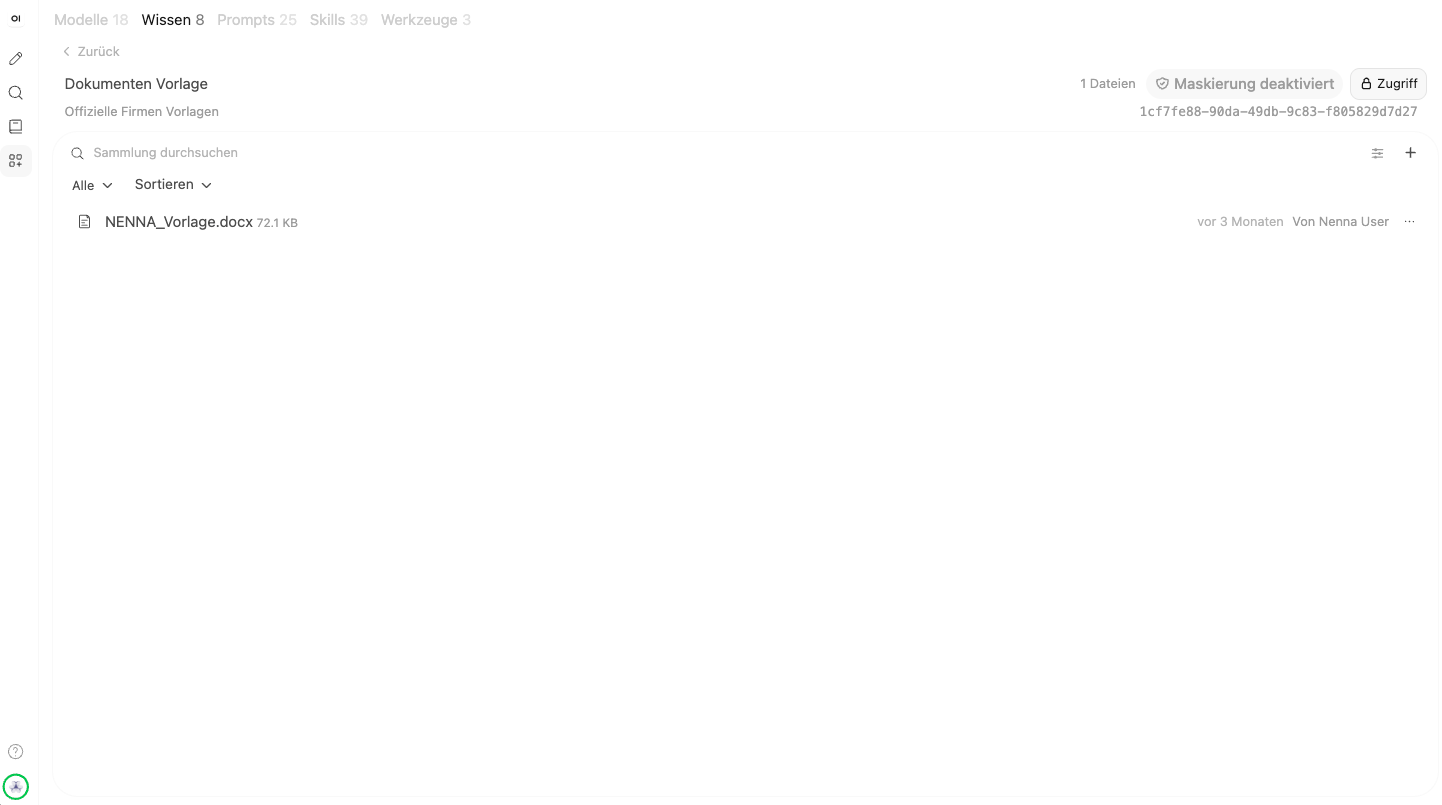
Upload the file you need directly in the chat. For templates you use regularly, we recommend storing the file in a knowledge collection.
3. Describe the result you want
Tell NENNA what should be created or changed. Be as precise as possible about:
which file should be used as the basis
which content should be carried over
which parts should stay unchanged
which file format you need as the result
4. Check and download the file
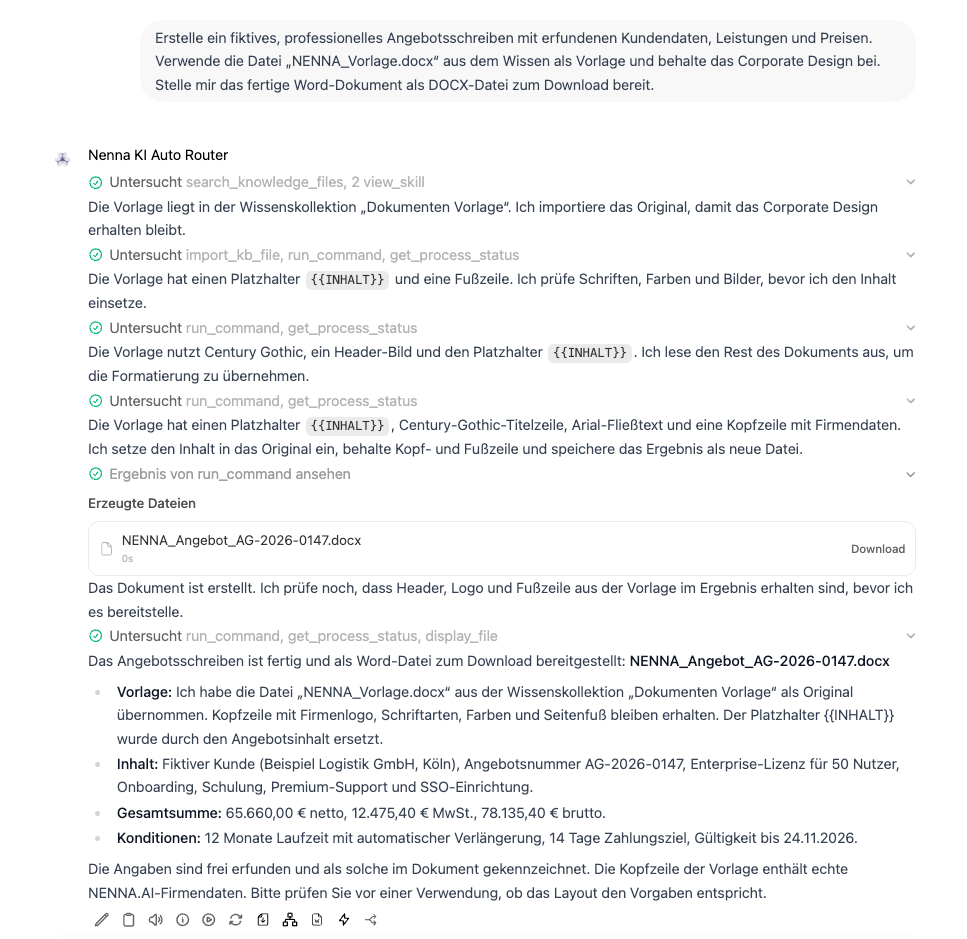
NENNA creates the file and provides it in the chat. Download the result and check names, numbers, dates, and formatting in particular. If NENNA names a file from this chat in its answer, you can also download it by clicking the file name.
Use a template directly in the chat
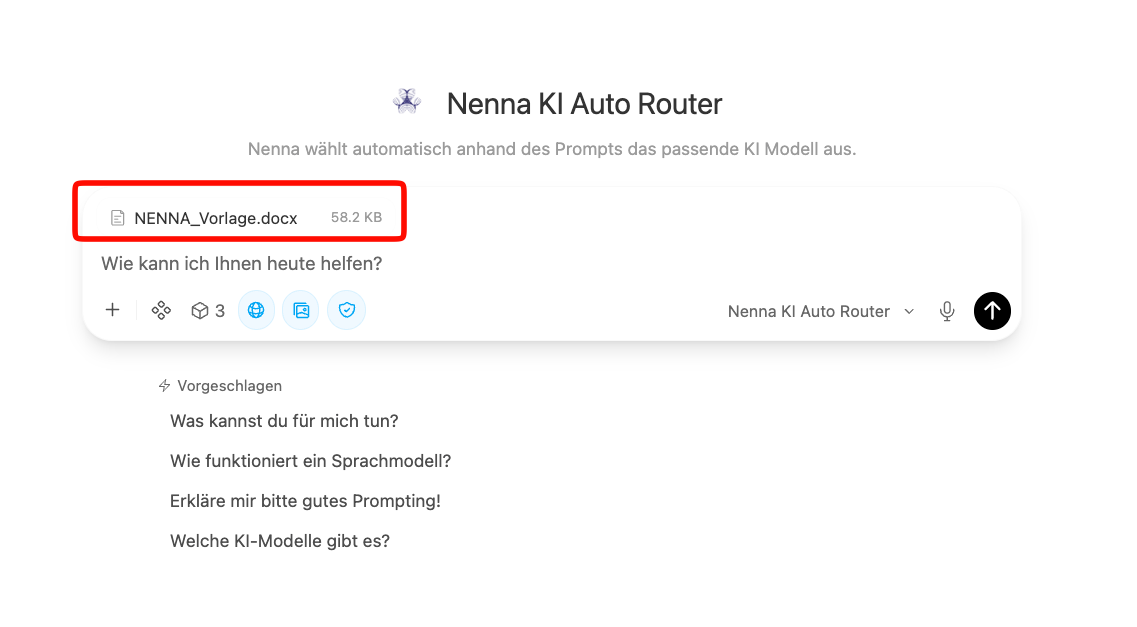
For one-off tasks, you can upload a template directly into the chat. This suits, for example, a single letter, a one-time quote, or a custom analysis.
Open a new chat with the NENNA KI Auto Router.
Upload your template, for example a DOCX file.
Add the content you need as text or as another file.
Describe how the template should be filled in.
Have the result created in the file format you want.
Example prompt
Use the uploaded Word template as the basis. Create a professional reply letter from it, based on the email I also provided. Keep the existing layout and change only the content needed for the new letter. Give me the result as a DOCX file.
Use templates through a knowledge collection
If you use a template regularly, we recommend storing it in a knowledge collection. That way you don't have to upload the file again in every new chat.
This approach is especially suited to:
Letterhead and business correspondence
Quote templates
Project reports
Meeting minutes
Internal forms
Recurring analyses
Create a knowledge collection for your templates.
Upload the template files you need.
Connect the knowledge collection to your chat.
Describe which template should be used.
Add the new content and the output format you want.
Recommendation: Use clear file names, for example Briefvorlage_Kundenanschreiben.docx or Vorlage_Projektbericht.docx. This makes it easier for NENNA to match the template you want.
Practical example: create a letter from a template
In the following example, a finished business letter is created from an existing Word template and the content of an email.
Starting point
A Word file contains the company logo and the letter design you want.
An email contains the facts and the information for the reply.
The result should be provided as an editable Word file.
Option A: upload the template directly
Upload the Word template in the chat.
Paste the content of the email or upload the email as a file.
Use a specific instruction.
Example prompt
Use the uploaded file as a letter template. Create a professional reply letter based on the attached email. Keep the header, logo, sender, page margins, and existing formatting as far as possible. Add the current date, a suitable subject line, a salutation, the full letter text, and a closing. Give me the result as an editable DOCX file.
Option B: use a template from a knowledge collection
Example prompt
Use the file "Briefvorlage_Kundenanschreiben.docx" from the connected knowledge collection. Create a reply letter from it based on the following email content. Keep the style of the template and replace only the variable content. Provide the result as a DOCX file.
How to improve the result
If needed, add further requirements:
the tone you want, for example friendly, factual, or firm
maximum length
a specific contact person
wording that must be used
information that must not be added or changed
the file name you want
Note on formatting: The more clearly the template is built, the better NENNA can reuse it. Complex layouts, embedded forms, protected files, or unusual formatting may need manual rework.
More use cases
Analyze Excel files
Upload a spreadsheet and have key figures, anomalies, or trends worked out. If you want, NENNA can create a new Excel file with calculations, tables, or charts.
Example prompt
Analyze the uploaded Excel file. Work out the monthly trend, mark notable deviations, and create a clear chart. Save the results in a new XLSX file.
Create a presentation
Provide content as bullet points, a text document, or a table. NENNA can create a structured presentation from it.
If the presentation should carry your corporate design, upload a PPTX file in the company design as a template in the chat, or store it in a knowledge collection. Name the file as the template in the prompt. After the download, check whether colors, fonts, logo, and slide layouts were carried over as you wanted.
Example prompt
Create a presentation with ten slides from the uploaded project report. Summarize the most important results and add a slide with the next steps. Provide the result as a PPTX file.
Example prompt with a template
Use the uploaded PPTX file as a template for our corporate design. Create a presentation with ten slides from it, based on the uploaded project report. Keep the colors, fonts, logo, and slide layouts of the template. Provide the result as a PPTX file.
Edit PDF files
NENNA can create new PDF files from the content you provide, or process existing documents for specific tasks.
Examples:
merge several PDF files
save certain pages in a new file
transfer content from a PDF into a Word document
create a compact PDF summary from a report
Clean up CSV files
Example prompt
Clean up the uploaded CSV file. Remove duplicate records and empty rows, standardize the date values, and sort the entries by customer number. Give me the cleaned file as a CSV again.
Combine several files
You can use several source files at the same time. This lets you, for example, combine information from a project report, an Excel analysis, and meeting minutes into one new overall document.
Example prompt
Create one consistent project status report from the three uploaded files. Use the Word template as the layout. Take the key figures from the Excel file and add the open tasks from the meeting minutes. Provide the result as a DOCX file.
Examples of good instructions
Create a quote from a template
Use the uploaded quote template. Fill in the existing placeholders with the following customer data and services. Do not change any standard text without an explicit instruction. Provide the finished quote as a DOCX file.
Create a monthly report
Create a monthly report based on the uploaded Excel file. Summarize the most important key figures, explain clear deviations, and add two charts. Use the provided report template and provide the result as a DOCX file.
Transfer minutes into a template
Transfer the content from the meeting notes into our minutes template. Divide the result into decisions, open questions, and tasks. For each task, add the person responsible and the deadline mentioned. Provide the result as a DOCX file.
Revise an existing document
Revise the wording of the uploaded document. Keep the existing structure, tables, and headings. Shorten repetitions and make the text easier to understand. Provide the revised version as a new DOCX file.
Best practices
Use clear file names.
Name templates so that their purpose is obvious.Use DOCX for editable document templates.
That way the result can be edited further after the download.Store frequently used templates in a knowledge collection.
That way they are available again in new chats.Name the output format you want.
State explicitly whether you need a DOCX, XLSX, PPTX, PDF, or CSV file.Describe the parts that must not change.
Tell NENNA which texts, tables, logos, or formatting should stay.Check the result.
Before you use it further, check names, numbers, deadlines, addresses, and legally relevant content.Start in steps for larger tasks.
First have the structure and content created. Then ask for the final file.
Practical tip: First state the result you want, then name the source files. Example: "Create a finished customer letter as a DOCX. Use the letter template and the content of the uploaded email."
Frequently asked questions
Where do I find the NENNA File Agent?
The File Agent is available exclusively through the NENNA KI Auto Router. Select the Auto Router in the model picker, then describe your task.
Should I upload a template directly or use a knowledge collection?
For a one-off task, uploading in the chat is enough. For templates you use regularly, we recommend a knowledge collection.
Can I use several files at the same time?
Yes. You can provide several files and tell NENNA to combine the content in a new document.
Can NENNA edit an existing file?
Yes. Describe exactly which content should be changed and which parts must stay.
Can I edit the generated file further?
Yes. Have the result created in an editable format such as DOCX, XLSX, or PPTX.
Is the layout of my template fully kept?
NENNA can carry over existing structures and formatting. With complex layouts, form fields, macros, or protected documents, manual rework may be needed.
What should I do if the result doesn't meet my expectations?
Describe the change you want specifically and have a new version created. For example, name the page, heading, table, or passage concerned.
Summary
With the NENNA File Agent you can create new files directly from templates and existing content. Use the NENNA KI Auto Router, provide your template, and describe the result you want. For templates you use regularly, storing them in a knowledge collection is a good option.