

With the new feature for document masking in the knowledge store you can automatically detect and anonymize sensitive information, before an AI model works with it. This feature helps you store confidential content in a GDPR-compliant way, without having to give up context-based AI functionality.
What is the knowledge store?
The knowledge store is an area in NENNA where you can permanently store content to be used later in AI chats, e.g. PDFs, guidelines, briefings, or presentations.
New:
➡️ All files can now be automatically masked during upload.
What does "masking" mean?
Masking means that NENNA detects during upload:
- personal data (e.g. name, email, phone number),
- confidential content (e.g. customer numbers, locations, organizations),
… and lets you manually review, mask, or leave visible this data.
You decide:
- What should be anonymized before going to the AI?
- What may remain visible?
Step-by-step guide
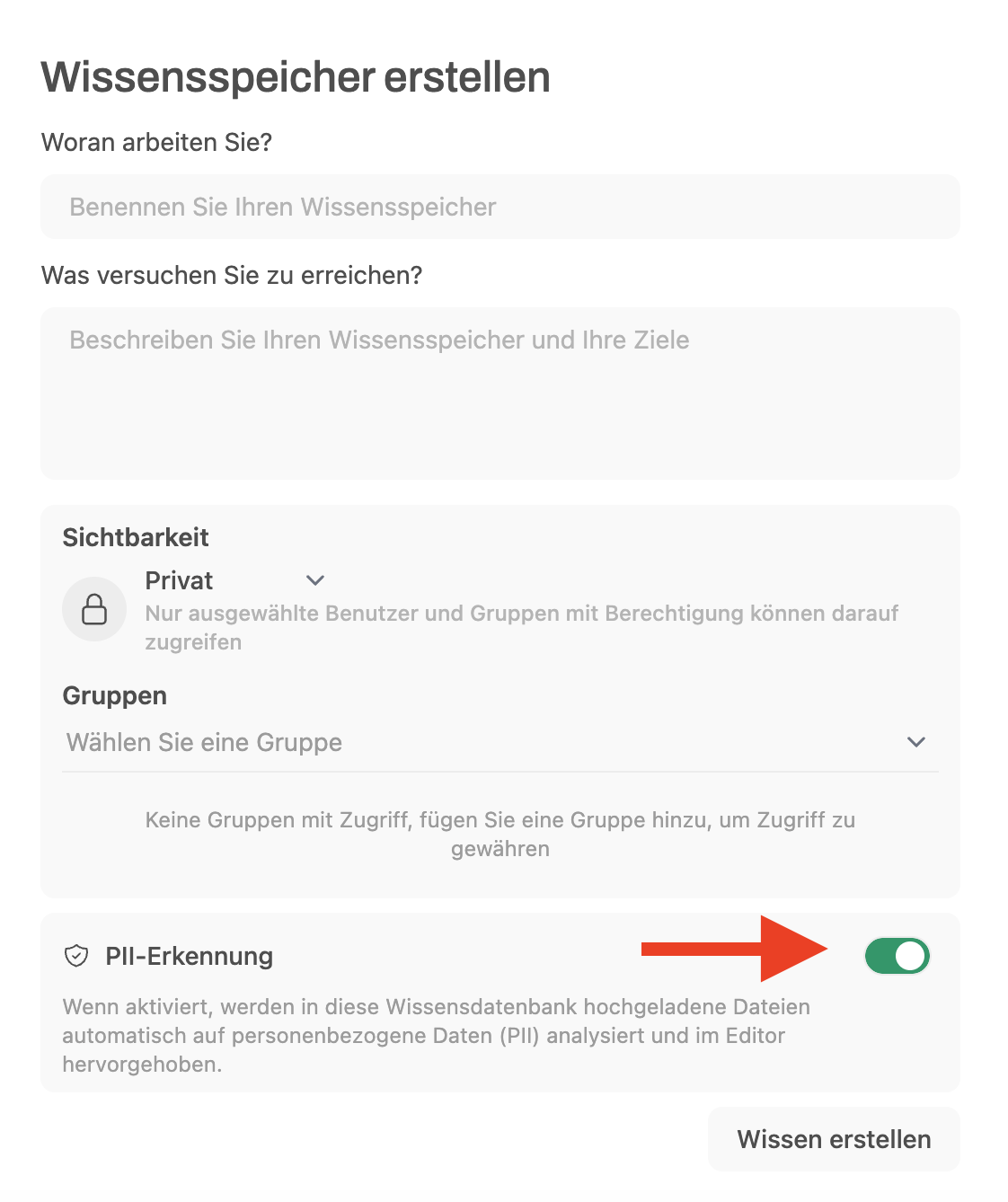
1. Create a new knowledge entry
- Go to the "Knowledge" area.
- Click "+" to create a new collection.
- Enable the "PII detection" option at the bottom (on by default).
- ➡️ Recommendation: Keep masking enabled to automatically work in a GDPR-compliant way.
2. Upload document
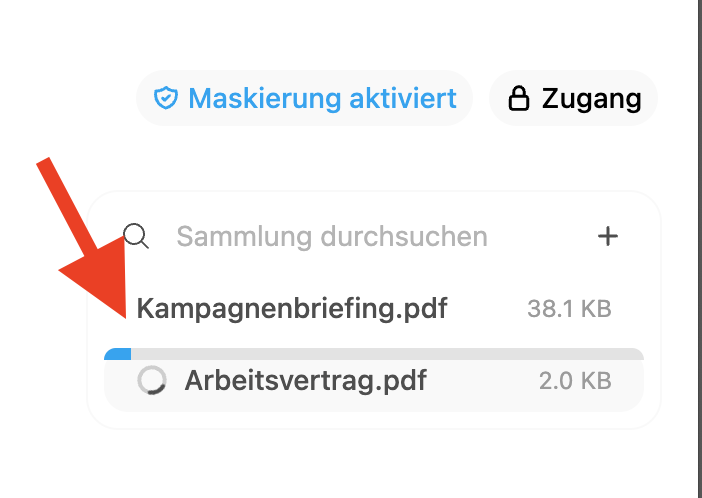
- After creating the collection, click "Add content" → "Upload file".
- Choose, for example, a PDF file such as a campaign briefing.
- NENNA detects text (including OCR for scanned PDFs) and starts the analysis.
3. Review masked content
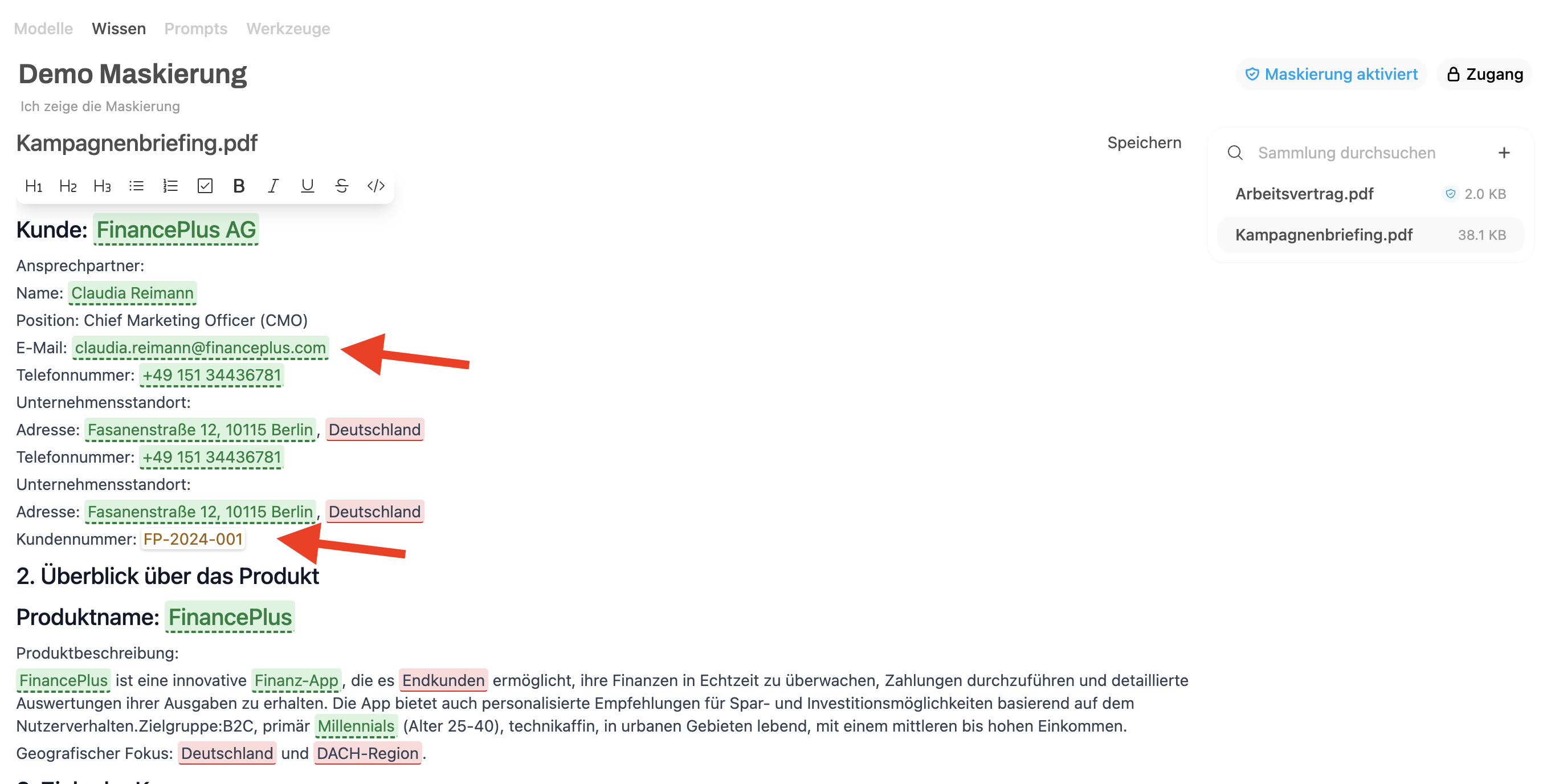
As soon as the document is uploaded, you see:
📌 A notice: "Data is masked"
Here you can:
- enable/disable masking,
- manually add or remove individual terms (e.g. "end customer", "customer number"),
- click directly on detected items and make decisions.
➡️ Example:
Select "customer number" → click "Mask" → will not be passed to the model during the prompt.
4. Save and use
- After reviewing, click "Save".
- The masking state is stored permanently.
- You can go back into the mask at any time later and make adjustments.
5. Work with the knowledge in chat
- Open a new chat.
- Add the knowledge (e.g. via # or through the interface).
- Ask your questions or request a summary.
Example:
"Summarize the content of the campaign briefing for me."
➡️ The AI processes the document, without access to masked content.
Privacy benefits
| Feature | Explanation |
|---|---|
| Automatic detection | PII (personal data) is automatically detected during upload |
| Manual control | You decide what is masked and what is not |
| Visible protection status | The UI always shows whether masking is active |
| De-anonymized results | The output contains meaningful content without risk of privacy violations |
FAQ
What happens to masked data?
→ It is replaced with placeholders and not sent to the AI model.
Can I change the masking afterward?
→ Yes. You can go back into the document at any time and adjust masking.
Does this only work with PDFs?
→ No, it also works for Word or other text files (HTML)
Do I have to manually review every document?
→ No, you can also trust the automatic detection. Manual review is optional.