
1. Privacy: prompt and document masking
If you work with sensitive customer data, contracts, or personal information, you should protect it before AI models process it. NENNA has two masking functions for this.
1.1 Prompt masking
Prompt masking detects sensitive information in your inputs and can anonymize it.
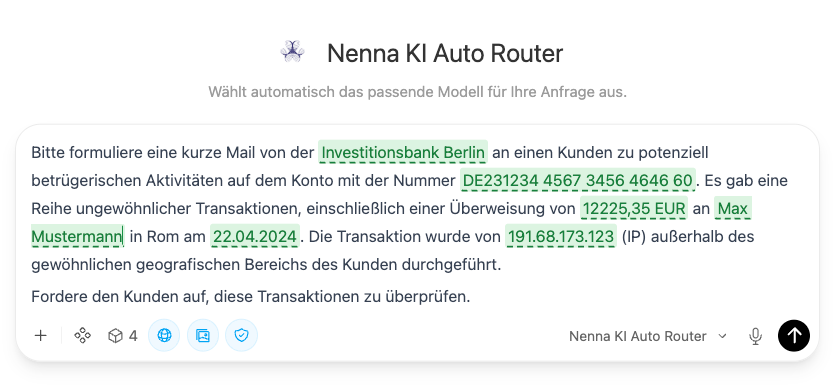
What it can detect:
Names and personal data (PII)
Email addresses and phone numbers
Customer numbers
Other confidential data
How to use prompt masking:
Write your question or instruction as usual.
NENNA detects sensitive data automatically.
Decide which data should be masked.
The AI model gets anonymized placeholders instead of the real data.
Best practices
Mask critical information.
Leave general information unmasked.
After masking, check that the right data is protected.
Help pages:
1.2 Document masking
With document masking, you can protect PDF and Word files before they are analyzed.
Step 1: Upload a document
Open a new or existing chat.
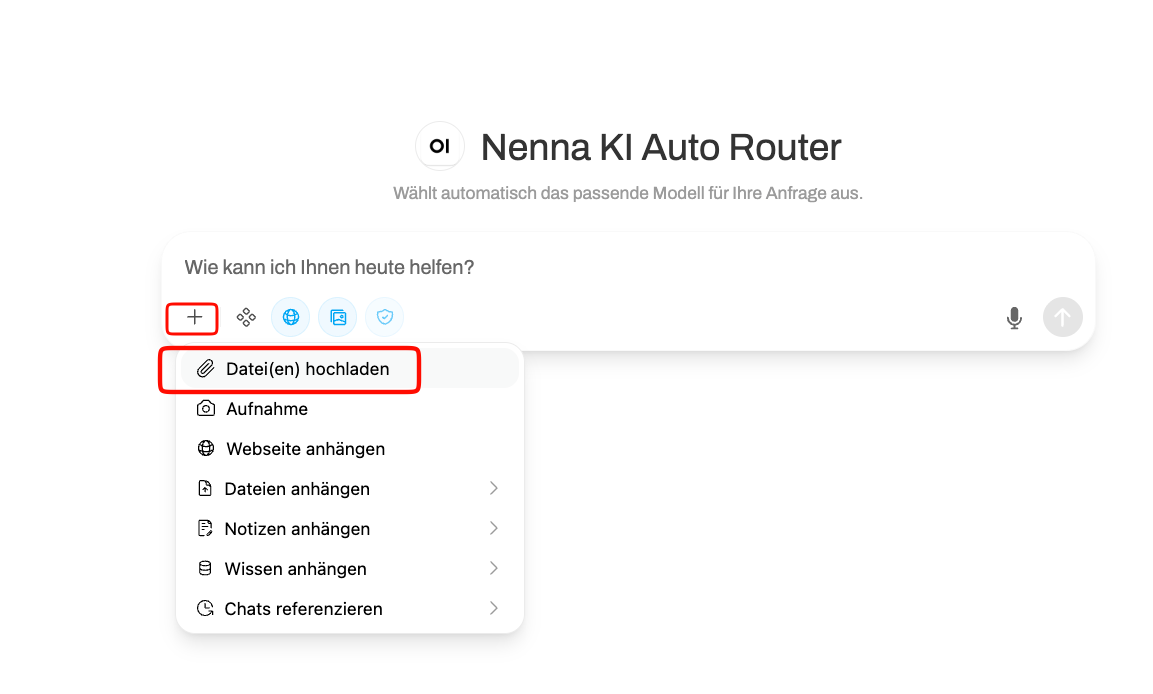
Click + under the text input field.
Choose Datei hochladen and upload your PDF or Word document.
Tip: You can also drag and drop files into the chat window.
Step 2: Automatic detection
NENNA runs text recognition (OCR if needed) automatically and analyzes the content. In the chat, the protection status is shown with the notice "Daten sind mit NENNA geschützt" and a shield icon.
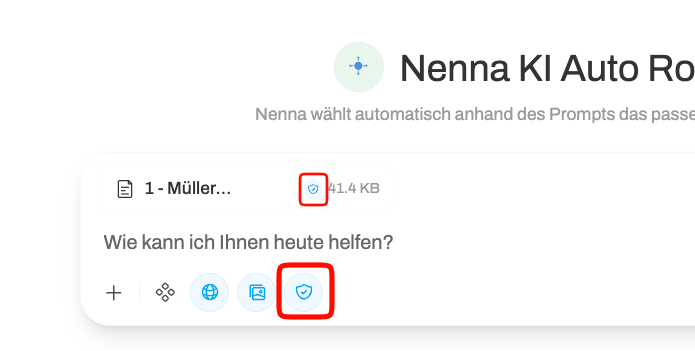
Step 3: Check and mask sensitive data
Click the notice or open the file preview.
Check the detected data, for example names, email addresses, customer numbers, and phone numbers.
Select the data that should be masked.
Click Mask Words.
Step 4: Work with the document
Ask your question, for example: "Summarize the document." The AI model processes the document without the masked data and gives you an answer that fits the context.
Step 5: Keep using the results
You can ask follow-up questions, translate the result, or export content.
Typical use cases
Campaign briefings with customer data
Contracts with personal information
Support documents with sensitive contact details
Invoices or logs with reference numbers
Benefits of document masking
Benefit | What it means |
|---|---|
Automatic detection | PII is detected automatically on upload. |
Manual control | You decide which data gets masked. |
Visible protection status | The interface shows whether masking is active. |
Useful results | The output stays understandable while masked data is protected. |
Help pages:
2. Workspace: knowledge, prompts, and skills
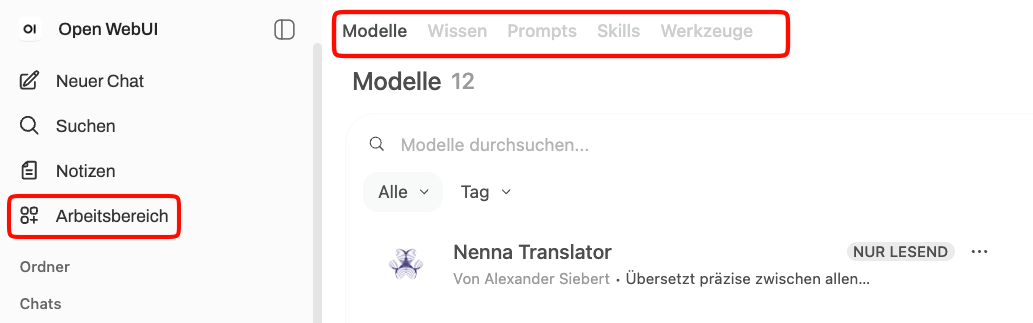
The workspace is your hub for reusable content and configurations. There you find the sections Modelle, Wissen, Prompts, and Skills.
How to open the workspace: In NENNA, click Arbeitsbereich, at the top or in the sidebar.
2.1 Knowledge (knowledge base)
A knowledge collection is a set of documents, files, and notes that the AI can use as context and search.
Suitable content: PDFs, Word and Excel files, notes, texts, training materials, FAQs, guidelines, manuals, and templates.
Why a knowledge collection helps
Consistent results: The AI works with the same sources.
Less effort: You don't have to upload files again for every request.
Teamwork: The team can use the same knowledge base.
More context: The AI can take company knowledge, processes, and templates into account.
Examples: Support FAQs and product manuals, contract templates, company policies, brand communication, and project templates and checklists.
Create a knowledge collection
Open Arbeitsbereich → Wissen.
Click + Neue Wissenssammlung.
Give it a clear name, for example "Customer support FAQs".
Choose the visibility: Privat (only you) or Öffentlich (your team).
Click Speichern & Erstellen.
Upload files by drag and drop or with the upload button.
Work with a knowledge collection
Open a chat.
Connect the knowledge base you want in the upper chat area.
Ask your question. The AI searches the connected content.
Help pages:
2.2 Prompts (templates for questions)
A prompt is a saved question or instruction that you can use again and again.
Prompts are good for
getting recurring tasks done faster,
keeping wording consistent,
sharing best practices with the team, and
documenting proven workflows.
Examples: Writing emails, revising texts, analyzing data, or creating content.
Save a prompt
Open Arbeitsbereich → Prompts.
Click + Prompt speichern.
Give it a clear name, for example "Summary for laypeople".
Optional: Use variables in the format
{{Variable}}, such as{{Thema}}or{{Zielgruppe}}.Choose the visibility: Privat or Für Arbeitsbereich.
Click Speichern & Erstellen.
Note: You create and save the prompt in Arbeitsbereich → Prompts, not through a separate save action in the chat.
Example with variables
Schreibe eine verständliche Zusammenfassung zum Thema {{Thema}}
für {{Zielgruppe}}.
Nutze eine {{Tonalität}}-Tonalität und bleibe unter {{Wortanzahl}} Wörtern.
When you use it, you replace the variables with, for example, "Artificial intelligence", "laypeople", or the word count you want.
Use a saved prompt
Open a chat and type
/to open the prompt menu.Pick a prompt.
Fill in the variables if needed and send the request.
FAQ about prompts
Question | Answer |
|---|---|
Can I share prompts with the team? | Yes. Choose Für Arbeitsbereich when you create it. |
Can I change prompts? | You can edit your own prompts at any time. Shared prompts may not be editable, depending on the sharing settings. |
Help pages:
2.3 Skills (custom functions)
A skill is an extended, reusable function. It can contain complex instructions, rules, and multi-step workflows.
Prompt | Skill |
|---|---|
Simple question or instruction | Complex, multi-step instruction |
Quick to create | Needs detailed planning |
For single or recurring tasks | For recurring processes |
Example: "Write an email." | Example: "Analyze customer feedback, categorize it, and create a report." |
Examples of skills
Email writer: Captures customer data, writes professional replies, checks tone and completeness, and outputs a finished draft.
Contract analysis: Reads contracts, extracts important clauses and deadlines, points out possible risks, and summarizes the results.
Data cleanup assistant: Takes CSV files, removes duplicates, standardizes formats, and returns the cleaned file.
Create a skill
Open Arbeitsbereich → Skills and click Erstellen.
Give it a clear name, for example "Business letter generator".
Describe when the skill should be used and what typical triggers there are.
Write the detailed instructions in Markdown format.
Click Speichern & Erstellen.
A good description explains what the skill does, when it is used, and which keywords or triggers are typical.
Example of a skill description
Dieser Skill formatiert und anonymisiert Kundenlisten für die Weiterverarbeitung.
Er wird verwendet, wenn Kundendaten bereinigt, standardisiert oder aus verschiedenen
Quellen zusammengeführt werden müssen.
Keywords: Kundenliste, Datenbereinigung, CSV, Duplikate entfernen.
Help pages:
3. KI Auto Router
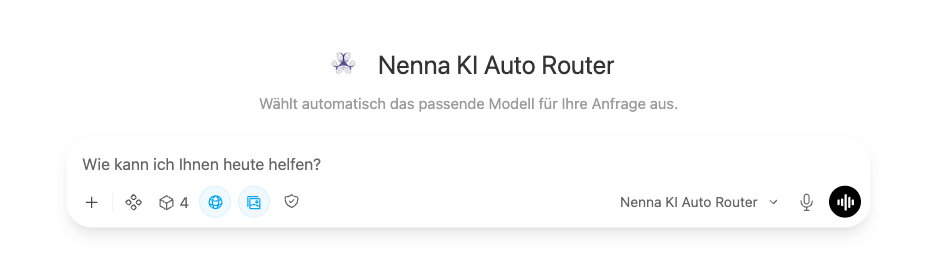
The NENNA KI Auto Router automatically picks a suitable AI model for your task. That way you don't have to choose between models from OpenAI, Anthropic, Google, and other providers before every chat.
How it works: You describe your task, the Auto Router analyzes the prompt and picks a model that suits the request.
Benefits
No manual model selection needed
Model choice that fits each task
No technical knowledge needed to choose a model
Supports different tasks and file workflows
Use the Auto Router
Open a new chat.
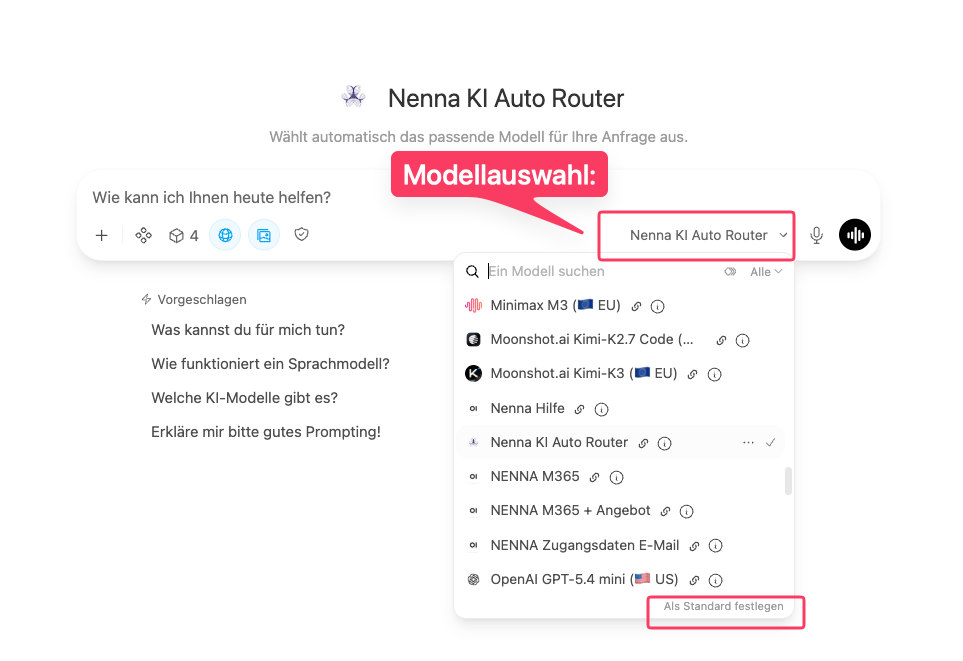
Click the model selection to the left of the send button.
Choose NENNA KI Auto Router.
Describe your task as specifically as you can and send the request.
Set it as the default for new chats
Open the model selection and search for NENNA KI Auto Router.
Mark it as Standard für neue Chats.
How to write a good prompt
Part | Guiding question |
|---|---|
Task | What exactly should the AI do? |
Context | What do you need the result for? |
Audience | Who is the result for? |
Format | Should it be a table, list, email, or running text? |
Length | How detailed should the answer be? |
Weak example: "Write about AI."
Strong example:
Erstelle eine verständliche Einführung zum Thema Künstliche Intelligenz
für Mitarbeitende ohne technische Vorkenntnisse.
Erkläre die wichtigsten Grundlagen in maximal 5 kurzen Abschnitten
und ergänze 3 praktische Beispiele aus dem Arbeitsalltag.
Frequently asked questions
Question | Answer |
|---|---|
Do I have to turn on the Auto Router? | No. It is available in the model selection automatically. |
Can I pick another model manually? | Yes, as long as the model is enabled. |
Does the Auto Router always pick the same model? | No. The choice depends on the task. |
Does the Auto Router work with files? | Yes. There is a special file mode for files. |
Help pages:
4. File processing and upload
NENNA can read, upload, and process files. Depending on the task, you can extract content, convert formats, analyze data, and create new files, for example Word, Excel, PowerPoint, or PDF files.
4.1 Upload files
With the chat button
Open a chat.
Click + under the text input field.
Choose Datei hochladen and select your file(s).
With drag and drop
Drag one or more files straight into the chat area.
Supported file types
Format | Example uses |
|---|---|
Contracts, reports, brochures | |
Word (.docx) | Documents, letters |
Excel (.xlsx) | Spreadsheets, data |
PowerPoint (.pptx) | Presentations |
Text (.txt) | Notes, content |
Images (JPG, PNG) | Graphics, screenshots |
CSV | Data tables |
Emails | Correspondence |
4.2 Analyze files
Upload a file and describe what you want to do with it.
The AI analyzes the file and answers.
Ask follow-up questions in the same chat.
Example of a spreadsheet analysis
Analysiere diese Excel-Tabelle und finde:
- Die TOP 5 Kunden nach Umsatz
- Monatliche Trends
- Anomalien und Ausreißer
After that, you could ask, for example: "Create a chart for the trends."
More examples
Analyze a contract: extract important clauses and deadlines
Evaluate a spreadsheet: calculate totals per category
Summarize a document: sum up a report in five bullet points
Recognize an image: describe what you can see in a screenshot
Help page:
5. Summary and FAQ
Your start with NENNA
Protect sensitive data: Use prompt or document masking.
Use the Auto Router: Let NENNA pick a suitable model.
Save prompts: Create templates for recurring questions.
Build a knowledge base: Collect relevant documents for your team.
For advanced users
Create skills for complex, multi-step tasks.
Use the File Agent to create and edit files right in the chat.
Connect knowledge collections to your chats.
Improve prompts with variables and templates.
Frequently asked questions
Question | Answer |
|---|---|
Is NENNA safe for data privacy? | Yes. You can mask data before it goes to the AI. Everything runs encrypted. |
Can I upload files? | Yes. Supported types include PDF, Word, Excel, PowerPoint, text, images, CSV, and emails. With the File Agent you can also create new files. |
Which model should I use? | Use the KI Auto Router, which picks a model that fits the task. |
Can I save content for my team? | Yes. Knowledge collections, prompts, and skills can be shared with the workspace. |
Where can I get more help? | Visit the NENNA Help Center or write to [email protected]. |
Good luck with NENNA.AI! 🚀
This onboarding document is updated regularly. If you have questions, contact [email protected].