
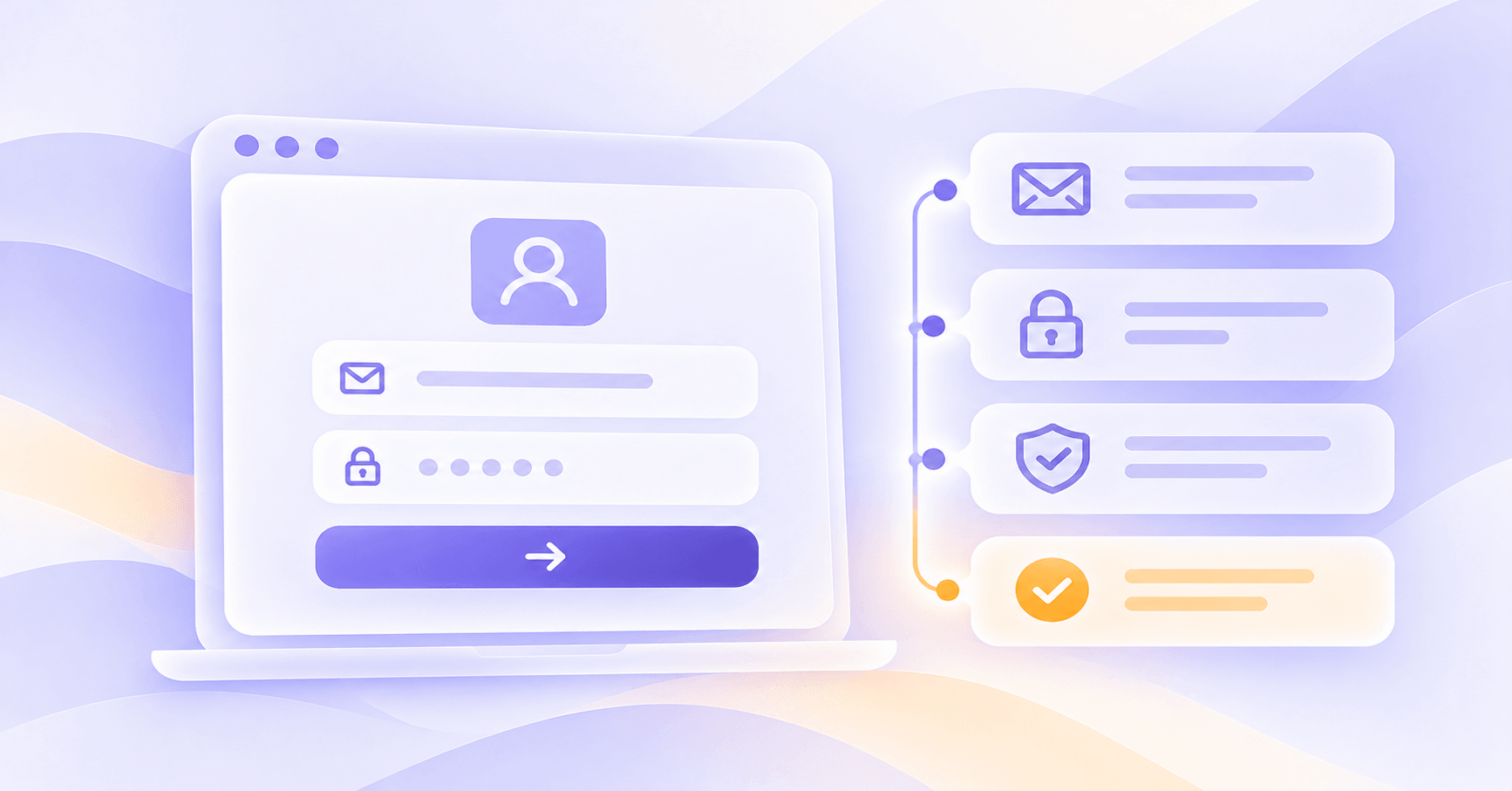
You received an invitation to NENNA and want to log in for the first time? This guide shows you step by step how logging in works and what you can do if it doesn't work.
Step 1: Open NENNA
Open your browser and go to your organization's NENNA platform.
companyname.nenna.ai
Step 2: Enter your email address
Enter the business email address your NENNA account was set up with.
Step 3: Set or enter your password
The first time you log in, you may be asked to set a password.
If you have already set a password, enter it.
Step 4: Request a verification code
For security, NENNA uses an additional verification code. It is also called a one-time code or OTP code.
Click
Code anfordern.NENNA sends a verification code to your registered email address.
Open your email inbox and find the message with the code.
Important to know:
Delivery can take a few minutes.
Also check your spam or junk folder.
Do not click
Code anfordernseveral times in a row.
Each new request creates a new code, and the previous one becomes invalid. Request the code once and wait a few minutes before you request a new one.
Step 5: Enter the verification code
Once the email has arrived:
Copy the verification code from the email.
Go back to the NENNA login page.
Paste the code into the field provided.
Confirm your entry.
When copying, make sure no space is copied before or after the code. Otherwise the code will not be accepted.
Done: you are logged in
After successful confirmation, you are forwarded to NENNA. You can now use the features your organization has enabled for you.
Depending on your organization's configuration, your administrator may first have to enable your access.
Common problems when logging in
I don't receive a verification code
Check your inbox and the spam folder. Wait a few minutes, as delivery can be delayed. If no email arrives, request a new code.
My verification code doesn't work
There can be several reasons:
You accidentally copied a space.
You are using an older verification code.
You requested a new code several times.
The code has already expired.
In this case, request a new code and use only the one you received last.
I am logged in, but I can't use NENNA
Your administrator may still need to enable your access or assign you the required permissions. Contact the NENNA administrator of your organization.
I still have problems logging in
Our support team is happy to help: [email protected]
Describe as precisely as possible at which step the login fails. A screenshot of the error message helps us narrow down the problem faster.