With the user preview, administrators check which resources a user can access in NENNA. It shows group memberships, AI models, knowledge bases, and tools in one place, so you can check permissions and spot access problems faster.
What is the user preview?
In NENNA, administrators use groups and permissions to control which resources are available to individual users. The user preview shows a user's effective access rights directly in user management.
The preview has four sections:
Section | Description |
|---|---|
Groups | Shows which groups the user belongs to. |
Models | Shows the AI models the user can access. |
Knowledge | Shows the knowledge bases available to the user. |
Tools | Shows the tools the user is allowed to use. |
You also see how many resources are available to the user in total.
How to use the user preview
Open the NENNA administration area.
Go to the
Benutzersection.Find the user whose permissions you want to check. The actions are to the right of each user.
Click the eye icon next to the user you want. The user preview opens with an overview of the resources currently available.
Check the Groups, Models, Knowledge, and Tools sections.

Reading access rights
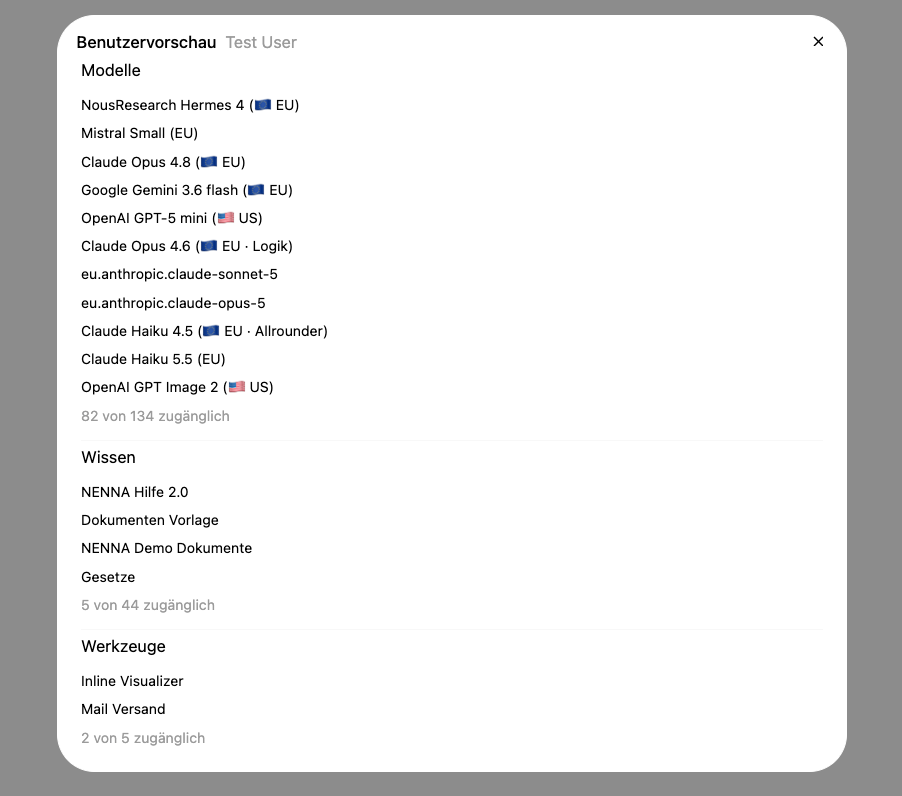
The user preview splits access rights into four sections. For models, knowledge, and tools, a note like 82 von 134 zugänglich shows how many of all existing resources the user can use.
Groups
Here you see which groups the user is currently assigned to. Group memberships affect which models, knowledge bases, and tools are available.
Models
This section shows all AI models the user has access to. With 82 von 134 zugänglich, the user can use 82 of the 134 existing models.
Knowledge
Here you see which knowledge bases are shared with the user. With 5 von 44 zugänglich, the user has access to 5 of 44 knowledge bases.
Tools
This section shows the tools the user is allowed to use, for example extra functions or connected tools. With 2 von 5 zugänglich, the user can use 2 of the 5 available tools.
Typical use cases
An AI model is not shown
An employee reports that a certain AI model is missing from their model selection. Open the user preview and check whether the model is listed under Modelle. If it is missing, check the model permissions and the group memberships.
A user cannot access a knowledge base
An employee wants to use an internal knowledge base but cannot select it. In the user preview, check whether the knowledge base is shared with the user. If it is not, adjust the permissions in knowledge management.
A tool is not available
A user cannot find a certain tool in NENNA. In the user preview, check whether the tool appears in the list of accessible resources. This tells you whether a missing permission is the cause.
Set up new users correctly
You have invited a new employee and assigned them to one or more groups. In the user preview, you see right away whether the intended AI models, knowledge bases, and tools are available.
Check permissions after changes
You have changed a group's permissions or shared additional resources. Then open the user preview of an affected user and check whether the changes work as intended.
Does the user preview change permissions?
No. The user preview is only for checking existing access rights. You cannot grant or remove permissions with it.
You still make changes in the relevant administration areas of NENNA.
Good to know
The user preview shows a user's accessible resources whether the permissions were granted through groups or through individual shares. So you do not have to check every group or resource setting one by one.
The access numbers shown give you a quick overview of how many resources are available.
The user preview shows a user's permissions. It is not a full simulation of their user interface.
Frequently asked questions
Who can use the user preview?
Administrators with the relevant administration rights.
Which permissions are shown?
Group memberships, plus the available AI models, knowledge bases, and tools.
What does "82 von 134 zugänglich" mean?
The selected user can access 82 of the 134 existing resources in that category.
Why is a certain AI model or knowledge base missing?
The user may lack the required permissions. Check the relevant shares and their group memberships.
Can I change permissions directly in the user preview?
No. The preview is only for checking. Changes are made in the relevant administration areas.